
✅ Updated: December 2025.
Don’t Let Bleed Errors Ruin Your KDP Book: Fix Them Now!
Are you about to publish your manuscript on Kindle Direct Publishing (KDP) but are worried about bleed errors ruining your book’s aesthetic? I completely understand that feeling. In my years of editorial experience, I have seen firsthand how these issues can undermine even the best-written content. The good news is that it’s entirely possible to fix these errors before your book goes live. Let’s explore how to tackle bleed errors effectively and ensure your book shines as it deserves.
Quick Answer
Bleed errors occur when your bleed settings in KDP do not match your book’s design, resulting in unwanted white space or cutting off images. By properly configuring your design and double-checking your settings, you can avoid these pitfalls.
Understanding Bleed Errors
What is Bleed in Book Publishing?
When I first delved into the world of book publishing, I remember grappling with the concept of bleed. Bleed refers to the part of your design that extends beyond the document’s actual dimensions. This allows for the trimming of the book without leaving any white edges, which can diminish the visual appeal of your work. Essentially, bleed ensures that your designs reach the outer edges of your printed page.
Types of Bleed Erros
- Cut-off Text or Images: This happens when vital elements extend too close to the edge and get trimmed off.
- Inconsistent Bleed Settings: Misalignments between the design software and KDP can cause inconsistencies in bleed.
- Misunderstood Dimensions: Using incorrect dimensions may lead to unexpected cut-offs.
Real-World Example: My Experience with Bleed Errors
Reflecting on my experiences, I remember when I worked with a new author whose illustrated children’s book was about to launch. We discovered, just a day before publication, that the vibrant illustrations had not been set to bleed correctly. My immediate concern was how we could salvage the situation, especially since the imagery was central to the story. After late-night discussions and reformulating the layout, we eventually corrected the issue. The book not only launched successfully but received praise for its stunning visuals. This incident reinforced the importance of addressing bleed errors well ahead of the publication date.
Common Mistakes and How to Avoid Them
Misconfiguring Bleed Settings
One of the most frequent mistakes authors make involves misconfiguring bleed settings within their design software. Programs like Adobe InDesign or Canva allow you to set up bleed dimensions, but failure to set these appropriately can lead to disasters.
- Always configure the document settings to include bleed dimensions of at least 0.125 inches (3 mm) around your project.
- Check to see if your designs extend to your bleed edges.
- Always preview your design before finalizing.
Ignoring Printing Guidelines
KDP has specific guidelines related to bleed. Ignoring these guidelines can result in poor print quality. I have seen authors get excited about their designs only to overlook these crucial specifications. Always ensure your chosen paper type aligns with KDP’s guidelines.
Key Industry Insights: A Comparison Table
| Aspect | KDP Standard Bleed | Non-bleed Format |
|---|---|---|
| Visual Appeal | Professional, polished finish | May look unfinished |
| Design Flexibility | Wide range of design possibilities | Limited design options |
| Trim Margin | Includes extra space for cutting | No additional margin included |
| Risk of Errors | Low if set up correctly | Higher due to limitations |
Actionable Tool: Your KDP Bleed Checklist
To help you further, I’ve created a simple checklist that you can download and utilize as you prepare your book for KDP publication. Cross-check each point before you hit that publish button.
- Are your document dimensions set to include bleed?
- Have all images and backgrounds been extended to the bleed lines?
- Is the text positioned safely away from the edge, within the live area?
- Did you run a test print to check layout and bleed?
- Have you previewed your book in the KDP previewer tool?
FAQ Section
What are the recommended bleed settings for KDP?
The recommended bleed settings for KDP are typically 0.125 inches (3 mm) for both sides of the document.
Can I fix bleed issues after upload?
Unfortunately, once your book is uploaded and submitted for publishing, it’s difficult to fix bleed issues. Therefore, it’s crucial to address these before submission.
How can I ensure my designs meet KDP requirements?
Always refer to the KDP publishing guidelines for the most accurate and up-to-date information regarding design specifications.
How This Article Was Created
This article draws from my extensive experience in the publishing industry and my continuous research into the KDP platform. My journey as an editorial expert has enabled me to understand the intricacies involved in self-publishing. I often engage with communities of authors to share insights and best practices, which shaped this comprehensive guide.
Conclusion
As most seasoned writers and editors would unanimously agree, paying attention to detail is crucial to the success of any publication. Don’t let bleed errors distract from your incredible storytelling and hard work. By adhering to the guidelines and using the insights provided, you can avoid common pitfalls and give your book the visual appeal it deserves.
Remember, the journey of writing and publishing is a collaborative effort—don’t hesitate to seek mentorship, engage with your peers, and continuously learn. Let’s get your manuscript out into the world without the fear of bleed errors marring its brilliance!
📚 Loved this article?
Join our community of readers and writers.
Subscribe to our YouTube channel for author tips, book insights, and publishing secrets.
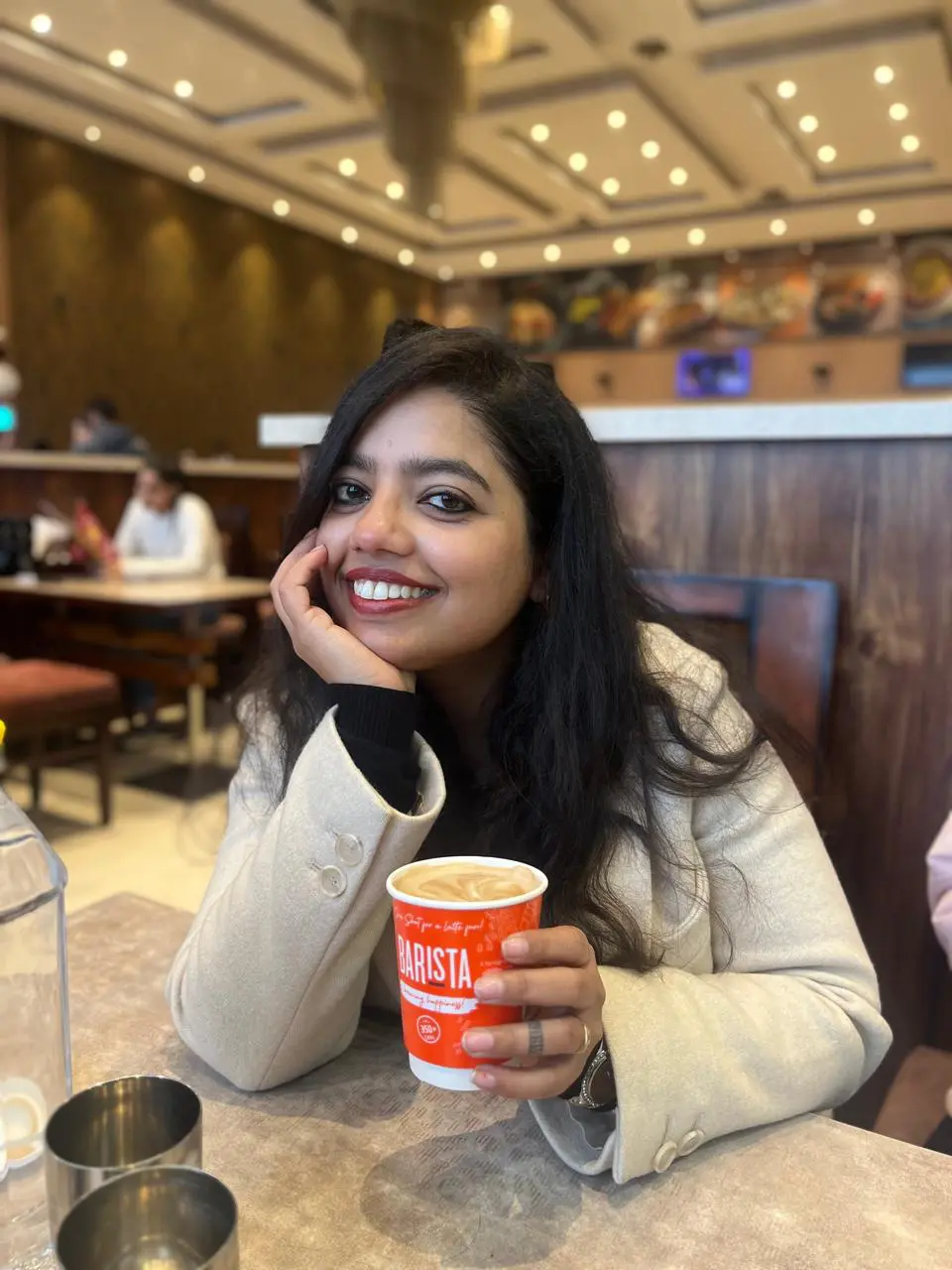
Alka Pandey is a Contributing Editor at Deified Publications, specializing in publishing industry analysis and media trends. With over 6 years of experience, she leverages deep research to provide a national perspective on the business of books, digital media, and content strategy. When she’s not diving into market reports, Alka is either traveling to literary festivals or tracking down the next great non-fiction read.